How to AI Combine Two Images on Your Phone
Everything you need to AI combine two images is already on your phone: the photos, a browser and a keyboard. The method, the four habits that decide the result, and what to check before you post it.
Almost every photo worth combining is already on a phone, and so is the hardest part of doing it there: a small screen, a fiddly keyboard, and a camera roll full of forwarded copies.
None of that stops you. You can AI combine two images from a phone in about a minute, and the result is identical to doing it on a desktop — the work happens on a server, not on your handset. What differs is how easy it is to make a bad choice along the way.
The four steps
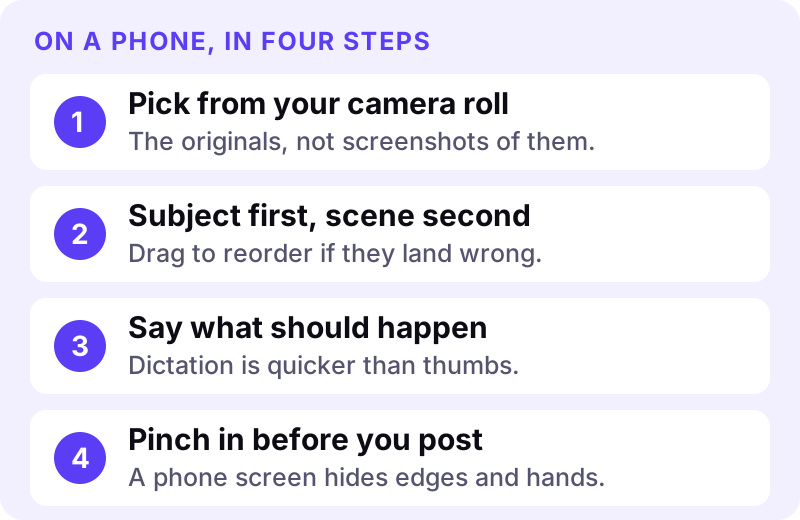
1. Pick the originals, not the copies
This is the step phones punish. Your camera roll holds the full-resolution photo you took; your chat apps hold a heavily compressed copy of the one somebody sent you. They look identical at thumbnail size and are not remotely the same file.
Choose from the camera roll where you can. If the only version you have arrived by message, expect a softer result and crop in tighter so more pixels land on the subject.
2. Subject first, scene second
The first image sets the lighting and camera angle the result follows. Put the thing you want to keep first and the place it is going second. If they upload the wrong way round, drag the thumbnails to reorder — nothing needs re-uploading.
3. Describe the result — out loud
Typing a careful sentence with thumbs is miserable, which is why phone instructions tend to be too short to work. Use dictation. Say it the way you would describe it to a person:
The man with the bike from photo one, standing on the road in photo two, in bright morning sun with a shadow on the tarmac. Keep his face and jersey exactly as they are.
That takes eight seconds spoken and two minutes typed. Our guide to writing prompts for image merging goes deeper, but the shape above covers most jobs: subject, placement, light, and what must not change.
4. Check it at full size before you post
A phone screen is a flattering liar. Everything looks good at four inches. Pinch in on the edges around hair and shoulders, on hands, and on the ground where the subject meets it — those are where a merge gives itself away, and a feed full of people on big screens will see what you did not.
A worked example
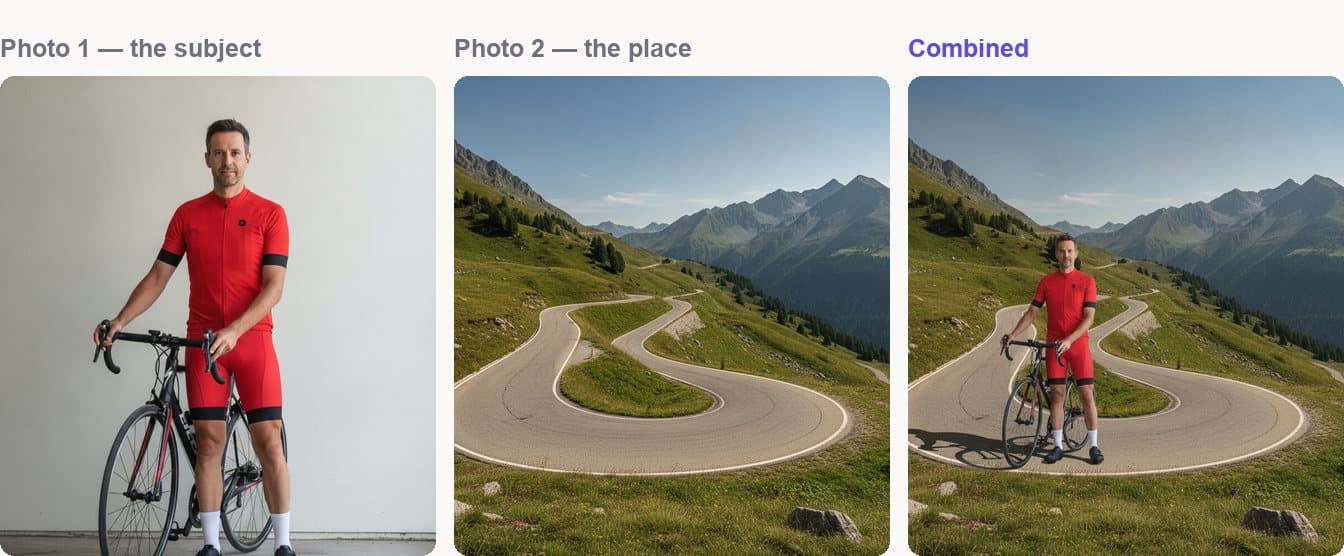
Note what changed and what did not. His face, jersey and bike are untouched. What moved is the light: flat indoor light replaced with hard morning sun, and a shadow on the tarmac running away from it. Nothing in the first photo had that shadow.
Four habits that decide the outcome
Shoot the subject against something plain if you have the choice. A busy background is not fatal, but a plain wall gives the cleanest edges.
Match the light before you upload, not after. Two photos lit from roughly the same side merge almost effortlessly. A flash-lit subject going into soft daylight means the model has to relight a face, which is the hardest thing you can ask it.
Hold the phone the same way for both. A photo taken at chest height does not drop naturally into a scene shot from the floor.
Keep the output shape in mind. Decide whether this is going somewhere square, portrait or wide, and set it before you generate. Cropping afterwards loses the part you cared about.
What about doing it in an app instead?
Most phone photo apps can place one picture on top of another. That is not the same thing, and the difference shows immediately: a pasted layer keeps the light it was shot in, so your subject sits on the scene rather than in it.
Collage apps
Fine for photos side by side, which is a genuinely different job — see how to put two images side by side if that is what you actually want.
Cut-out and sticker tools
These lift a subject onto a new background. Quick, and convincing only when the two were lit similarly to begin with. The giveaway is always the same: no shadow where the subject meets the ground.
Why relighting is the whole game
Combining photos on Android or iPhone with an AI tool differs because the subject is rebuilt for the new scene rather than pasted into it. That is what produces a shadow that was never in the source photo.
When it comes back wrong
Phone or desktop, bad results have the same handful of causes:
- The face changed. Your instruction did not protect it. Add "keep his face exactly unchanged" and run it again.
- It looks stuck on. Usually a missing shadow. Name it: "with a soft shadow on the ground beneath him."
- The scale is off. Give it a reference — "about as tall as the signpost behind him" — rather than "bigger".
- Two tries failed the same way. Stop rewording. The input is the problem: too small, too dark, or too compressed.
Does it need an app?
No. A browser is enough, which is the point — nothing to install, nothing taking up space, and the same tool whether you are on an iPhone, an Android or a laptop later. Your setup carries over because the work is done server-side.
Try it with the photos you already have
Open the Image Combiner on your phone, pick two photos from your camera roll and dictate what should happen. You can arrange everything and see exactly what you are asking for before an account or a payment comes into it — see pricing for what a merge costs when you are ready.
If you want the full method rather than the phone-shaped version, how to AI combine two images walks the whole thing end to end.